Source Detail View (Parsing XML) #citations #xml

This page was stimulated by a question Jerry Bryan posed in the discussion on the Submit Your Problem page about finding and viewing the value of the Page field for a Free Form template. That led to a series of SQLite queries culminating in this one that I thought warranted a page for further discussion and development. It reports Master Source Names and their citations showing the field names and values entered via RootsMagic 4’s Edit Source window in the green area for Source Detail.

The challenge to viewing these Source Details and other like fields is that they are stored in a single cell for each citation, in hexadecimally coded, XML-like text. In raw form, it looks like this, using SQLiteSpy:

SourceName Fields
Births: Scotland Birth & Baptisms; LDS index (ct NFS, o/l db) Blob

A BLOB is the type name for a field containing hexadecimal vales. One has to convert the UTF-8 code to text using the CAST function to convert this BLOB field, strangely called FIELDS, to a text field we’ll call SourceDetail:

SourceName SourceDetail
Births: Scotland Birth & Baptisms; LDS index (ct NFS, o/l db) <?xml version=”1.0″ encoding=”UTF-8″?>
<Root><Fields><Field><Name>AccessType</Name><Value/></Field><Field><Name>AccessDate</Name><Value>4 March 2011</Value></Field><Field><Name>ItemOfInterest</Name><Value>Thomas Bowman entry, birth (25 Sep 1864), Dundee`|“|` Thomas Bowman bir. (1864) </Value></Field><Field><Name>SubmitData</Name><Value>C11282-1, Scotland-ODM, Source Film Number: 6035516</Value></Field></Fields></Root>

That’s better but a forest of XML tags obscures the values of interest. The following example code uses the SUBSTR function to cut off the top and tail and nested REPLACE functions to strip out the XML tags and replace with punctuation. To keep the example simple, we won’t go into bringing out the persons, couples, and facts that cite these sources.

-- Citations of all Sources with Source Names and Source Detail fieldnames and values.
SELECT SourceName,
 REPLACE(
  REPLACE(
   REPLACE(
    REPLACE(
     REPLACE(
      REPLACE(PageValue, '</Name>', ': '),
     '<Field><Name>', '; '),
    '</Value>',''),
   '<Value>',''),
  '<Value/>',''),
 '</Field>','')
 AS SourceDetail
FROM
 (
  SELECT S.Name COLLATE NOCASE AS SourceName, SUBSTR(CAST(C.FIELDS AS TEXT),68, LENGTH(CAST(C.FIELDS AS TEXT))-100) AS PageValue
  FROM CitationTable C LEFT JOIN SourceTable S USING (SourceID)
  )
ORDER BY SourceName
;

Here is some sample output:

SourceName SourceDetail
Births: Scotland Birth & Baptisms; LDS index (ct NFS, o/l db) AccessType: ; AccessDate: 4 March 2011; ItemOfInterest: Thomas Bowman entry, birth (25 Sep 1864), Dundee`|“|` Thomas Bowman bir. (1864) ; SubmitData: C11282-1, Scotland-ODM, Source Film Number: 6035516

Under SourceDetail, you can see the field name (always a one word concatenation) followed by a colon, space, field value and semi-colon, as substituted by the REPLACE() commands. (RM uses “||” to separate a long form from an abbreviation – these were manually quoted above because WikiEditor interprets it in a table as the start of a new cell.)

The same principles could be applied to view the Master Source field names and values or anywhere else RM uses the XML-like format.


Playing around with the Replace characters, I came up with a format that displays rather nicely in both a text editor and in Excel:

Citations-SourceDetailExcel.png
SQLiteSpy adds the quotes around the revised SourceDetail result, probably because of the embedded Carriage Returns. If you copy from SQLiteSpy and paste directly to Excel, you lose the control codes. Instead I paste to PSPad (Notepad should also work), copy from there to Excel, and then invoke its Text Import Wizard to delimit on Tabs with ” as text qualifier. The Text Import Wizard is not available for a direct paste to Excel from SQLiteSpy.

Here’s the revised query:

-- Source Names and Source Detail fieldnames and values for Citations of all Sources, in a columnar style
SELECT SourceName||CAST (X'0D' AS TEXT) AS SourceName,
 REPLACE(
  REPLACE(
   REPLACE(
    REPLACE(
     REPLACE(
      REPLACE(PageValue, '</Name>', CAST (X'09' AS TEXT)),
     '<Field><Name>', CAST (X'09' AS TEXT)),
    '</Value>',''),
   '<Value>',''),
  '<Value/>',''),
 '</Field>',CAST (X'0D' AS TEXT))
 AS SourceDetail
FROM
 (
  SELECT S.Name COLLATE NOCASE AS SourceName, SUBSTR(CAST(C.FIELDS AS TEXT),55, LENGTH(CAST(C.FIELDS AS TEXT))-87) AS PageValue
  FROM CitationTable C LEFT JOIN SourceTable S USING (SourceID)
  )
ORDER BY SourceName
;

I tried this query with three other current versions of software:

  1. SQLite Developer 3.8.3.496: results visible on screen, not as nice as SQLiteSpy; can directly copy/paste to Excel (no added quotes) and invoke Text Import Wizard, thus saving the intermediate paste/copy needed by Spy but first SourceDetail field is preceded with two tabs instead of one as programmed causing it to start in third column while all subsequent ones start in the intended second column. Simply changing the SUBSTR parameters from 55 to 68 and -87 to -100 solves that problem. So I prefer Spy for direct viewing of results – selecting a cell of results shows the full formatted result in the bottom-most window; no such window exists in Developer – the cell expands to the full width but the data is displayed as one row. I prefer Developer for the quality and efficiency of its export to Excel and a text editor (no added quotes and steps).
  2. SQLite2009Pro 3.7.6.3: results in SourceDetail column not visible on screen and improperly exported to Excel.
  3. SQLiteStudio 2.0.12: results in SourceDetail column not visible on screen and improperly exported to Excel.
  4. SQLite Expert Personal 3.3.28.2158: best on-screen display of results; copy/paste to Excel allows invoking Text Import Wizard, required to preserve tab and carriage returns but one tab seems to be lost. Perhaps query can be tuned.
MS Access Engine – Using EXCEL #msaccess #msexcel #charts #filters

Microsoft Excel is a great tool for filtering/sorting/reporting on data in a Grid format. It also provides additional features such as various sorts of in-built graphs based on the data you are using as well as providing, for more advanced users, in-built calculation functions (formulas) that can be used to manipulate the data.

Naturally, as a Microsoft product it provides in-built connectivity to Microsoft Access databases.

If you have set up the links shown in the topics in this wiki concerning MS Access Engine and MS Access Engine – Event Query then you will now have the ability to look at, sort, filter, graph, manipulate data from your RM database from within Excel.

I am using Excel 2007 – so my screen shots reflect this. However, connectivity to MS Access has existed in Excel for many versions so you should be able to achieve the same/similar results from earlier versions of Excel – although the menus and screen layouts may be slightly different.

Firstly – we should remember that we are not directly connecting to our live RM data – we are using the Access database engine as a link through to the real data within the RM database.

Secondly – there is more than one way to connect to the Access engine from within Excel. One way is to click on the Data tab, select the “From Other Sources” drop down and click on “From Microsoft Query”. This will give you a list of your ODBC sources, inclusing the one you set up when you downloaded and implemented the ODBC driver. If you use this route you will see all the RM Tables which you can open as required. However, you will have the same limitations as were outlined in the other articles – you will not be able to select or sort on all fields.

The easiest wat to get to the data is to just open the Access database you created in following the instructions in the “MS Access Engine – Event Query” wike.

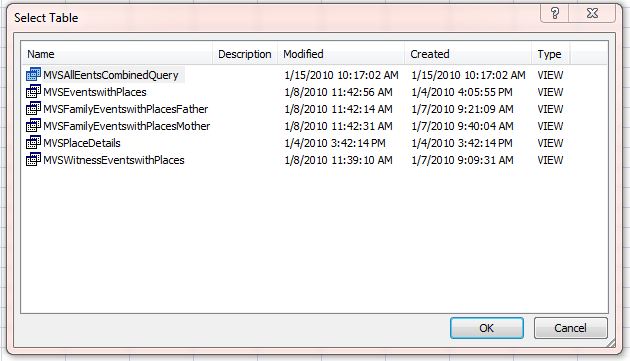
Go to File Open, make sure you are seeing the Access files (not just the Excel work book files, which is the default) and find your Access databse and open it. You will then be shown a screen listing the Queries you set up within the Access database:

AACapture.JPG

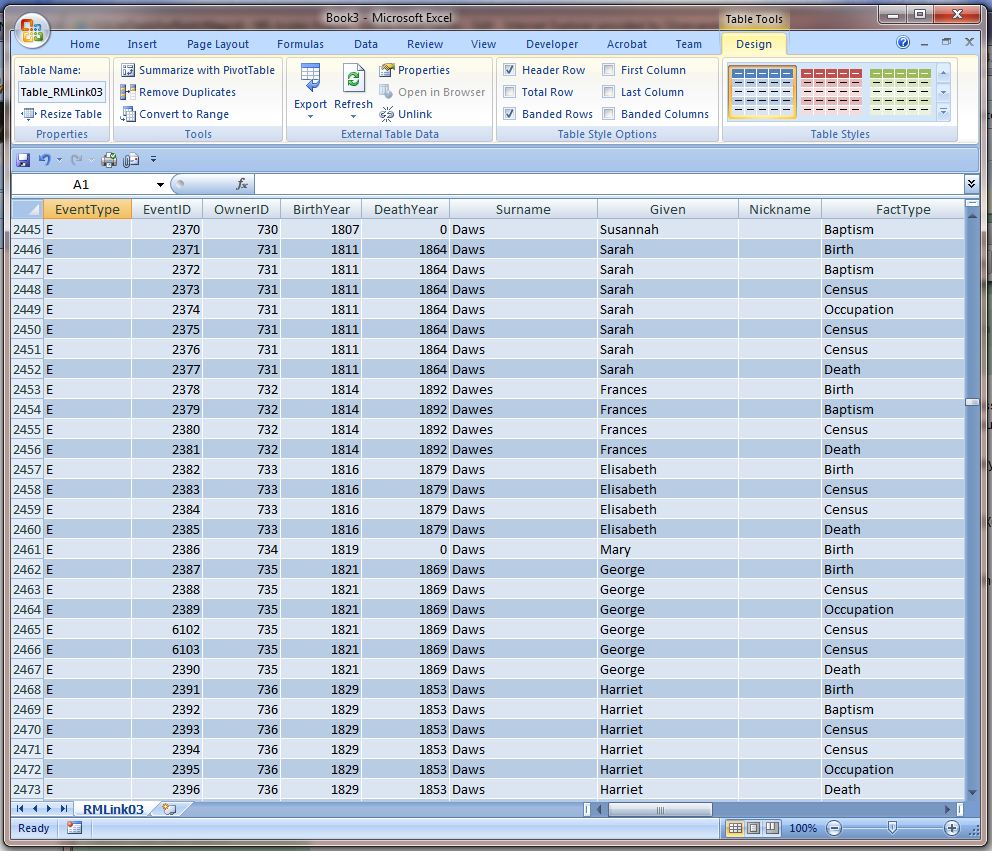
If you select the MVSEventsCombinedQuery it will bring all the Events on your RM database up for display in EXCEL. This may take a moment or two – as Excel seems to read all the events in before populating the Grid. On my PC (quite fast) it takes about 12seconds to read in and display a total of 7500 rows:

ABCapture.JPG

Once this has been done you can use the usual features within Excel to sort / filter. In the example below I have set a filter on “Census” record types only and selected the Surname of “Waller” only. I have also hidden columns I do not wish to display. These enquiries are quick to do and instant to update onscreen.

ADCapture.JPG

WARNING. Do not UPDATE any data unless you are confident you understand what you are changing will not affect the operation of RM.

Prev: MS Access Engine | MS Access Engine – Event Query Next: MS Access Engine – Excel Pivot Tables | MS Access Engine – The BLOB Fields


Discussions & comments from Wikispaces site


ve3meo

Nice!

ve3meo
12 February 2010 14:52:15

I wish I had MS Office Pro….

Questions about RM4 Tables #requestforhelp #datadefinitions #msaccess

I followed your instructions and was able to link to my MSAccess database – but all the files are read-only. Any tips on what might be causing that behavior, rather than them being read/write as your instructions note?

Do you have details on the way the indices join between the tables?

Do you have an explanation about how dates are being stored, and how to turn them into something that is easy to read?

Discussions & comments from Wikispaces site


ve3meo

Write using MSAccess

ve3meo
14 April 2011 19:20:35

This question would be better posed to the MS Access page Discussion. Short answer is that Mark never indicated that he was writing to the RootsMagic database via MS Access, only that he was viewing and reporting. He also expressly warned against modifying data because of unpredictable consequences. As it turns out, there are but a handful of tables that we can modify outside RootsMagic; the others use a secret collation sequence RMNOCASE. There is more on that on the Search & Replace page.


ve3meo

Date storage and interpretation

ve3meo
14 April 2011 19:22:42

Question best posed to the Data Definitions page and pretty well answered on the Date Decoder page and pages linked therefrom.


ve3meo

the way the indices join between the tables?

ve3meo
14 April 2011 19:29:48

Question best posed to the Table Summaries page or to the Data Definitions page.

Tables are not joined by indexes. They are joined by the SQL query that you define or MS Access and SQLODBC create from your MS Access form. The SQLite query optimiser chooses the appropriate pre-existing indexes to use or creates temporary auto-indexes in order to execute the query efficiently.

Backup Media with Database – 7Zip

The following was written in 2011 and RM Inc did rise to the challenge and produced a Backup option that includes media. However, it does two things that some people do not like if they are forced to restore from that backup:

  1. Their carefully developed folder structure for media is collapsed into one media folder underneath the restored database.
  2. Their carefully named media items are renamed in the backup file to a hexadecimal string which must be a hash of the original name. While a successful RM Restore will both extract and unhash the name, using an independent unzip utility will not thus breaking all links between the database and the restored media items.

The procedure described below avoids those two outcomes by preserving paths and filenames in the backup file.

2011 Text

Not everyone wants to pay for an archive utility as much or more than the price of RootsMagic alone, especially when RootsMagic already includes an archiving engine that, with a few tweaks, could do the job. So here is a full database + media procedure that uses a free backup program, 7-Zip AND produces a .rmgb archive/backup file containing both a RootsMagic database and the media files it uses. And the really good news is that the RootsMagic Restore function will unpack the archive to a folder where the media will be in the same relative folders as they were in at the time of archiving. If this target folder path is different from the path of the original database folder, all that’s needed to correct the now erroneous media links in the database is to use RM’s Search & Replace on Multimedia filenames. So c’mon RM! It should be a trivial task to add a full backup feature to the File menu…

The Zip encoder RM4-7 uses for Backup may not be able to handle a large database with many media files – another reason to use outboard procedures until its limitations are lifted. See this article in Wikipedia on the early Zip limits.

If you have not done so, read the original page Backup Media with Database – RAR to find out about setting up the shortcut and placement of files.

This is the batch procedure to be called by the shortcut:
RMfullbackup7zip.bat
RMfullbackup7zip.bat.bak (.bak extension added because of some systems’ security that blocks .bat)

Here is the script:

@ECHO OFF
REM RMfullbackup7zip.bat
REM RMfullbackup.bat by Tom Holden 2011-02-02
REM Rev 2011-03-20: uses free 7-Zip utility to create a .rmgb backup compatible with RootsMagic Restore function
REM Backs up a RootsMagic database file and all the media files referenced by it to one, compressed ZIP type file.

REM Command syntax: RMfullbackup.bat <databasename>
REM This batch file should be in the same folder as the database and expects a Backups folder immediately below it.
REM All media files must be in subsidiary folders below the database folder or in the same folder. If not, then
REM the SET variables must be revised so that the contentPath is common to the database and media paths. 
REM Close the database file from RootsMagic before running.

REM The first backup can take considerable time, depending on the total of the file sizes.
REM To save time on subsequent backups, RMfullbackup merely updates the backup file for those files added, changed or deleted.
REM Install the SQLite3 command line version in the same directory as the RMGC database file(s)
REM  OR set a system PATH to where sqlite3.exe is located
REM  OR prepend the path to sqlite3.exe in the command below.
REM Likewise for 7z.exe
REM Under the RM Data folder, create a folder Backups; if a different path is to be used, edit the command line below.

REM The backup file will be written to the Backups folder and will have the name <databasename>_fullbackup.rmgb
REM A log will also be written to the Backups folder with the name <databasename>_fullback.rmgb.log

REM ***set variables
SET archiver=C:\Program Files\7-Zip\7z.exe
SET contentPath=.\
SET list=.\Backups\backup.lst
SET archive=Backups\%1_fullbackup.rmgb

REM ***run sqlite query to get list of media files to be backed up 
sqlite3.exe %1.rmgc "SELECT DISTINCT trim(MediaFile) from MultiMediaTable;" > "%list%"

REM ***change directory to the root path common to both the database and media files.
cd /d "%contentPath%"

REM backup media files listed by query followed by the database file
"%archiver%" u -tzip "%archive%" @"%list%" %1.rmgc -r > "%archive%.log"

PAUSE
END

LifeLines #places #placedetails #events #lifelines

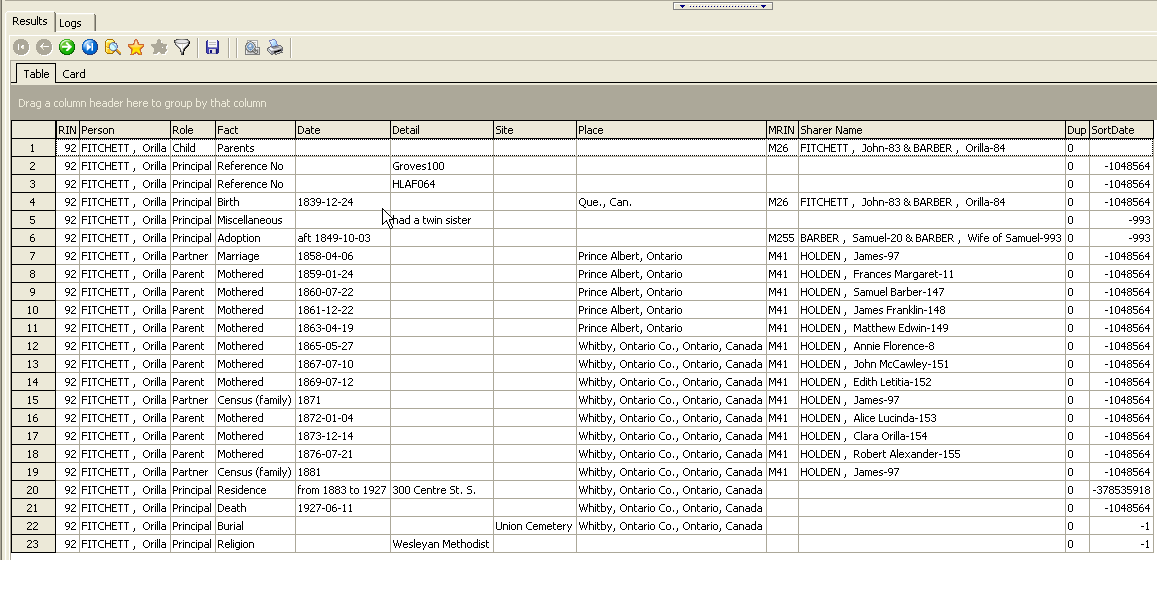
The LifeLines query lists all events for all persons whether in a database tree or not, including shared facts, date, fact detail, site and place, MRIN, other parties, duplication indicator and IsPrivate flag (new!). Sorted by RIN and Sort Date. With the right SQLite manager, can filter results for one person. It’s a successor to AllFacts4Persons12 incorporating structural changes so that the code for date processing is not repeated in every SELECT and one SELECT in particular accomplishes much more than in the earlier query. It’s fast – it produced some 465,000 rows against a database of 155,000 persons in 88s.

LifeLines_Results.png
Sample result displayed by SQLite Developer

The query is provided in two versions:
LifeLines-OO.sql is compatible with many versions of SQLite managers and can only provide results for all persons. Usable with OpenOffice Base (hence the OO suffix).
LifeLines-RINparm.sql is compatible with fewer versions but, with SQLite Expert and some others, has an input parameter to filter results on one RIN. Other managers skip the input parameter and produce the whole result set or raise an error.

LifeLines_Parameter_Input.png
The only difference between the two queries is the WHERE clause in this image showing the RIN input parameter as displayed by SQLite Developer. Entering a blank will return all results.

Date Decoder #date

Decodes most of the possible formats found in RM4 Date fields of the form Da+nnnnnnnn.x+nnnnnnnn.x .
Does not decode Quaker dates nor will it format in any way other than yyyy-mm-dd.
Queries a sample database containing some example dates; this database also contains the query as a VIEW.
The query could be adapted to integrate with a broader query of a RM4 database by renaming the field reference.
It is a large and complex procedure that would be better suited to being programmed as a function in a custom extension of sqlite or in a calling program.
Download query: DateDecoder.sql
Download example database: RMDateFormats.db3
A fuller interpretation of the Date format has been prepared by romermb and can be found on the Dates sheet of the OpenCalc workbook RootsMagic4DataDefs.ods and summarised on the page Date Formats.

Download wPDF300A.DLL #pdfgenerator

RootsMagic 4 updates in the 4.0.9.x series to 4.0.9.3 should install this file in the RootsMagic 4 program directory. For some reason, some installations fail to do so. The result is that reports cannot be saved to PDF format and an error message indicates that the file cannot be found. Downloading this file to the RootsMagic 4 program directory should resolve this problem.

Download: wPDF300A.dll or wPDF300A.dll.bak (Remove .bak extension after d/l)

16 June 2010: It appears that the 4.0.9.3 installer was modified without change in the RootsMagic 4 version number at least once, with at least one variant failing to include this file. Downloading the current installer from the RootsMagic website and reinstalling will include the PDF generator. Because the version number did not change, the Check for Updates menu item will not trigger an update if you already have 4.0.9.3 installed from the miscreant variant.

Delete Phantom Citations – Query #delete #citations #phantom

This query deletes from the CitationsTable those records that have no associated record in the SourceTable. These ‘phantom’ sources or ‘orphaned’ citations manifest themselves in the Edit Person screen as citations that return nothing when opened, are counted in the File > Properties report and may have odd effect in other reports.

The query is believed to be quite safe to run as it affects nothing dependent on having the proprietary RMNOCASE collation.

-- DeleteUnsourcedCitations.sql
-- 2010-01-29 ve3meo
-- Deletes Citations having lost their Source
 
DELETE FROM CitationTable
  WHERE CitationID IN
   (SELECT CitationID FROM CitationTable c
      LEFT JOIN SourceTable s ON c.SourceID=s.SourceID
      WHERE s.SourceID ISNULL);

Facts Having Place Details – Query #placedetails #events

2025-03-01 FactsHavingPlaceDetails_RM10.sql version 3 updated to support the Association fact type introduced in #RM9

2025-02-28 All scripts below function with all versions from #RM4 to #RM10 but without support for Associations.

FactsHavingPlaceDetails3.sql

Returns all Places with Place Details and the Persons or Families (couples) and their Facts, including Shared events, using the Place Detail.

FactsHavingPlaceDetails3-results.png
Results from FactsHavingPlaceDetails3 as displayed by SQLiteSpy

FactsHavingPlaceDetails2.sql

Returns all Places with Place Details and the Persons or Families (couples) and their Facts using the Place Detail. No shared events.

SQLiteDeveloperSQLeditorFactsHavingPlaceDetails2.png
A comprehensive query by Romer. Screenshot from SQLite Developer.

This simpler query should run fast on very large databases with all sqlite3 managers.

FactsHavingPlaceDetails.sql

SQLiteDeveloperSQLeditorFactsHavingPlaceDetails.png
A simpler query by ve3meo. Screenshot from SQLite Developer.

Open Office #openoffice #oobase #oocalc #odbc

Open Office has a database program (Open Office Base) and a spreadsheet program (Open Office Calc). Base can be connected via ODBC to a SQLite database in much the same way as has been described for Microsoft Access, using the same SQLite ODBC driver (See Part One of MS Access Engine). A .odb file is created, saving the connection information and stored SQL queries. For later access to the SQLite database, one can open the .odb file with Base.

Additionally, like MS Office, one can register the .odb database with Open Office so that its tables and queries can be accessed in text and spreadsheet documents using Open Office Writer and Calc, respectively.

Base has a graphic query design tool similar to that of MS Access as well as a direct SQL editor.

Single queries that have been developed using other SQLite managers work in many cases when copied into the Base SQL editor and run using the RUN SQL Direct mode; some things that do not work:

  • multiple SQL commands in the one query
  • runtime input parameters
  • comment lines before the first SQL word
  • semi-colon (;) and apostrophe or single quote (‘) in comment

With the RUN SQL Direct mode turned off, most queries that work in other SQLite managers do not work when copied into the SQL View and run. I think in this mode, the commands are OpenOffice.org syntax which may be limited to a subset of the SQLite command set. It is not readily apparent what it is that allows a query to work in the direct mode and not in the OpenOffice mode. The error messages are useless and give no clue where to look.

Extracting the query from AllFacts4Persons9.sql to return all events for the individual worked “out-of-the-box”, complete with very complex date processing, in the Run SQL Directly mode. Opposingly, that query at the foundation of shared events for a couple would not work as it comprises multiple SQL commands. I have attempted to rebuild it using the SQL Design View method and can get it to work without processing the event date field but, using this method, there seems to be no way of incorporating the complex CASE structure employed for date processing. Simply pasting that part into the code generated by Base throws up untraceable errors. Probably the SQL CASE expression is unsupported or is different in the OpenOffice.org syntax.

Base SQL Design View produces what we would call “bloated” code – double quotes around table names and field names, for example, and no short alias for a long table name. It has the virtue of being able to query not only tables but also queries stored previously in the OOBase database. The SQL direct mode cannot query stored queries while the indirect mode does not support UNION.

The inability to incorporate the querying of queries, complex expressions and the UNION operator in one mode makes it very difficult to accomplish in OOBase what one can do outside of it. Moreover, OOBase’s filtering and sorting functions for results work only in the indirect or native mode, not in the SQL direct mode – another shortcoming.

The connection from OOCalc to a registered database can help. Queries and Tables can be selected and results viewed in the Calc viewer. Results can be dragged onto a spreadsheet and filtering applied there. Even more directly, a query can be selected from the Base Queries list to a Calc spreadsheet and the results will populate the sheet.

Unfortunately, OpenOffice and the ODBC connection to the RootsMagic 4 SQLite databases is so limited and failure-prone that it cannot be recommended and prospective users are warned of the prospect of frustration and disappointment. Hence, no further detail is forthcoming from this author on how to use set up and use OpenOffice with SQLite.

Discussions & comments from Wikispaces site


craigg43

Open Office Base connection to Rootsmagic data base

craigg43
18 April 2010 00:55:04

I’ve tried to create the connection alluded to, but have not been successful.
Could someone please provide the detailed instructions necessary to do this.


ve3meo

ve3meo
18 April 2010 15:12:21

I revised the page, not to provide any further detail but rather to warn you and others away from expecting much out of an OO connection to RootsMagic.

In any case, once you have installed the ODBC driver, you use
Control Panel > Admin Tools > Data Sources (ODBC)> ODBC Data Source Administrator
to
Add a User Data Source > Select SQLite3 ODBC Driver > SQLite3 ODBC DSN Configuration
to
Browse to/Select the RM4 file, assign a DSN name, accept the rest of the field defaults, OK
and
OK to close ODBC Data Source Admin

THEN

open OOBase,
File>Open to Database Wizard,
1. Connect to an existing database > select ODBC
2. Set up ODBC connection > Browse > Data Source > select the DSN you named above
Finish

You can then save a file from OOBase that has all these settings in it for later re-opening from the File>Open menu.