SQLite Tools for RootsMagic
Exploit your RootsMagic family tree database with SQLite Tools
Trying to find duplicate spouses
I am trying to find duplicate spousess.
I created the following query:
select fatherid,
(select n1.surname || “, ” || n1.given from nametable n1 where fatherid = ownerid) as fathername,
motherid,
(select n2.surname || “, ” || n2.given from nametable n2 where motherid = ownerid) as mothername
from familytable
order by fatherid, motherid;
1. Should there be blank fatherid’s for a motherid in the result?
2. Or likewise blank motherids for a fatherid in the results?
3. Am I safe to think that if there are 2 motherid’s for the same fatherid that it is a duplicate?
Backup database open in both SQLite and RootsMagic #backup
Problem
Neither the RootsMagic File>Backup nor File>Copy can proceed because the database file “is being used by another process” (RootsMagic’s own or your SQLite manager or other outboard SQLite connection). And if you’ve chosen Backup, RM gracelessly blocks you from further work with an always-on-top fake news message window “Creating backup file…” requiring closure of RM to clear.
If you were using a SQLite manager that’s connected to the database file, you have to close it in order to use RM’s utilities and then reopen it with numerous steps to finally execute the SQL you’ve been carefully crafting to make some important changes to your data. That disruption takes time, may lose some valuable history from the SQLite manager and, perhaps, derail your train of thought. Same goes for ordinary users getting thrown off track after running Compact and other unknown things that screw up the RM backup.
Outboard zip utilities such as 7Zip, RAR, WinZip,… all, to the best of my knowledge, require the closure of all other processes for them to proceed but do handle such a blockage gracefully, unlike RM4-7. It’s not sufficient that RM get to handle the blockage gracefully; it shouldn’t be blocked at all!
Some Workarounds
Looking into this issue in 2019, I’ve discovered some useful alternatives to RM’s backup and copy utilities that have arisen since the days of RM4 and Windows XP in 2009/10 when the original SQLite Tools for RootsMagic 4 Wiki began. SQLite Expert Professional lists “Backup” as a feature that likely uses the Online Backup API, perhaps the best suited to the task but at a price.
This post presents four free, fast backup methods that allow the database to remain open in RootsMagic and in one (or more) outboard SQLite connections. They have been tested with a database open in RM7.5.9 and simultaneously in three SQLite managers: SQLite Expert Personal 4.2.0.784, SQLiteSpy 1.9.12 and SQLiteStudio 3.2.1.
- Windows 10 File Explorer
- SQLite Command: VACUUM INTO
- SQLite Archive File
- Export to SQL Text file
Windows 10 File Explorer
My first surprise was to discover that the Zip function integrated in File Explorer (possibly from even before Win10) does not object to the database file being open. Nor does its copy function. The latter may be the easiest and fastest method.
Copy
With the File Explorer window open and the “filename.rmgc” database file selected, Copy (Ctrl+C) and Paste (Ctrl+V) results in “filename – Copy.rmgc”. Repeat and the copy is automatically serialized as
“filename – Copy (2).rmgc”
“filename – Copy (3).rmgc”
…
No manual file naming is needed to prevent overwriting of the last copy and any copy can be immediately opened by RM or any of the SQLite apps. The Created Date timestamp for the copy is the Date Modified timestamp of the original, so its value puts the copy’s version of the data into context, provided you have some log (recorded or remembered) of what you did before and after.
Zip
Right-click on the selected “filename.rmgc” database file and, from the popup context menu, click on Send to > Compressed (zipped) folder. This will popup a dialog box to allow you to change the default name “filename.zip”.
Repeat and File Explorer automatically serializes the name:
“filename (2).zip”
“filename (3).zip”
…
You could change the zip filename extension to “.rmgb” at any of these backups so that RootsMagic could find and restore from it but I wouldn’t bother for two reasons:
- It interferes with serializing the filename to preserve successive backups.
- It’s easy to extract from the Zip folder using File Explorer which gives you great control over where the extracted file goes with opportunity to rename and move it afterward.
Using File Explorer from within the apps
All of the mentioned apps launch a basic Windows File Explorer dialog Window to Open a database or carry out some other operation. All support Copy, Paste and Send to Compressed (zipped) Folder. Because RM’s window filters for .rmgc files, it is quicker selecting the database file. Presumably, the speed of the subsequent operation is independent of the application that opened the File Explorer dialog. When the copy of zip is complete, simply Cancel the window to back out to where you were with the database.
Copying or Zipping from the Command-Line or PowerShell
If File Explorer could copy or zip the database file while open in RootsMagic and SQLite, it seemed reasonable that these other Windows utilities could, too. The Zip is only available in PowerShell but both can copy files. Unfortunately, both the CLI and PS detected another process and refused to proceed.
SQLite command: VACUUM INTO
The VACUUM command was provided in SQLite 3 and all of the referenced SQLite managers from the get-go but it operated directly on the database in memory. About two months ago (ver 3.27), the command was extended with an INTO clause that writes the result of the VACUUM to a new database file without modifying the original. Effectively, this means that one can make a vacuumed copy of the currently opened database from a SQLite manager as a backup. If the original has not been recently vacuumed by either RootsMagic or by an outboard SQLite manager, then the vacuumed copy will be smaller in size.
The copy can be arbitrarily named and, if named with the .rmgc extension, can be opened directly by RootsMagic without going through a Restore process.
Typing the command and filename and ensuring the latter is unique is less efficient than the File Explorer method. A potential productivity gain would be to write a Windows command or Powershell script to launch the current sqlite3.exe command line shell program to open the database file to VACUUM INTO a filename defined by the script; it could incorporate date and time in the filename. Alternatively, the batch or command script could also zip the resulting .rmgc file and give the zip file the unique name.
After some time, the referenced SQLite managers will undoubtedly update to SQLite 3.27 to support the command and some may incorporate some higher level controls such as a file explorer dialog to facilitate the naming of the vacuumed file.
This command should work in SQLite for both Windows and MacOS.
For the SQLite 3 command line shell program, look for sqlite-tools-win32-x86-3270200.zip or later at https://www.sqlite.org/download.html. Also available for MacOS: sqlite-tools-osx-x86-3270200.zip.
SQLite Archive File
Since 2014, there has been development of a SQLite Archiver utility “sqlar” using SQLite and zlib to archive files of any type to a SQLite database container. The file contents are zipped to a Blob-type field in a table with one row for each archived file. In 2018, it has been made into an optional extension to the SQLite source code and is now integrated in the SQLite command-line shell tool mentioned above. It is possible for a SQLite manager to be compiled with this extension but I don’t know of any yet.
The SQLite command-line tool from 3.22 can be opened and at its prompt given the “.ar” command to create a SQLite Archive file, add|update files to it, list contents, and extract files from it. From 3.23, the recommended use is from the OS CLI to call sqlite3.exe with the -A option.
In this example in sqlite3.exe, I updated the SQLite Archive file “_LGS_pres.db” with the database “_LGS_pres.rmgc” that was open in RM and the 3 SQLite managers.
sqlite> .ar -uvf _LGS_pres.db _LGS_pres.rmgc
_LGS_pres.rmgc
The Archive file could contain many other files, e.g., the media files or other unrelated files, just as a Zip folder can.
Moreover, the SQLite Archiver can operate as a zip utility producing a .zip file (“compressed folder” in Win10) instead of a SQLite Archive file, skipping over the locks that trip up RootsMagic’s backup and 7Zip.
For more, see SQLite Archive Files.
Export to SQL Text file
This is an old method that has merit because it reads the SQLite database, not just copying it, to create SQL commands which can later be executed to build the identical database. Some SQLite managers support it (SQLiteStudio) and it is available in the command-line shell:
Use the “.dump” command to convert the entire contents of a database into a single ASCII text file. This file can be converted back into a database by piping it back into sqlite3.
The resulting text file is bigger than the database file but it can be piped into a zip utility for compression. Whether there is a limit that a large database might run into remains to be seen.
For more, see Converting An Entire Database To An ASCII Text File
Observations
- There are multiple ways to backup a RootsMagic database while it is open in both the RootsMagic application and one or more outboard SQLite connections.
- Using these other ways instead of the RootsMagic backup function may also avoid the recurring situation when RootsMagic blocks itself from completing a backup; a forced shutdown is the only way to resume working in RootsMagic.
- For the less technically proficient, Windows File Explorer provides a convenient alternative to the RM backup, even from within the RootsMagic user interface.
- RootsMagic developers should look into some of these alternatives that work with SQLite to resolve the conflict with outboard SQLite connections. Especially appropriate could be the Online Backup API because it is native to SQLite and aware of other users of the database, allowing them to “continue uninterrupted while a backup of an online database is made”.
Caveats
- Testing these has been necessarily superficial so there may be issues as yet undetected. Please comment below if you come across any.
- Make sure that the database is not being modified by one of the connections while the ‘backup’ is going on. When the backup is opened, there could be unexpected results. This is especially true of those methods that work without a SQLite connection to the database, i.e., File Explorer, SQLite Archiver.
- Those methods that require a SQLite connection to the database, i.e., VACUUM INTO, Export and Online Backup API, need the RMNOCASE collation (see RMNOCASE; faking it in SQLite Expert, command-line shell et al). It is possible that the resulting database will fail the RootsMagic database integrity test; simply use its Rebuild Indexes tool to correct.
Media Duplicates – Reports and Remedies
Problem
TreeShare update operations that add images from Ancestry to the RootsMagic database can result in successive downloads of the same image file saved to a revised name, each added to the Media Gallery and independently tagged to their respective subjects. I don’t think this is either necessary or desirable (maybe there is a good reason yet to be revealed by the RootsMagician!). Moreover, such duplication (or worse, multiplication) bloats usage of storage space and inflates the Media Gallery making it harder to manage, navigate, find things. The few respondents to my survey reported 10-20% of their media files were duplicates while an exercise with a 10-person subset of my 420 person Ancestry Tree after many TreeShare ops trying to resolve differences was far higher. The discussion and scripts that follow help understand the magnitude of the bloat and offer surgical tools to reduce it. These tools reduced the 92 media in the Gallery to 49.
Background
The issue predates TreeShare and could arise from combining databases but it is likely that it had not been noticed as frequently or to the same degree. Earlier effort dating back to RM4 (see Media Repair Queries) concerned itself with duplicate file names in different folders, not with duplicate content within differently named files.
RootsMagic places all TreeShare media from Ancestry in one folder for a given database. It does not attempt to substitute an existing duplicate media file for the one to be or is being downloaded; rather, it modifies the name of the downloading duplicate file with a unique suffix. Consequently, the old script would not even detect these differently named files with identical content, only those having the same name in separate folders. Moreover, it could generate false positives for files of the same name with different content leading to the deletion of potentially valuable information.
Finding Duplicates
By comparing RootsMagic thumbnails
RootsMagic’s database has a property for each image file that can be used as a basis for finding duplicate image content – the thumbnail image it creates of the image file. This thumbnail is stored in the database in the Thumbnail field in the MultiMediaTable. However, because it is a tiny thumbnail, it is a crude approximation of the original and it may be possible that similar images, such as some pairs of Census pages or BMD Indexes could give rise to identical thumbnails. Experience will tell. It’s a very convenient parameter to exploit as seen in this query result from a tiny, test database.
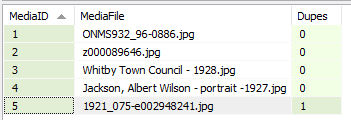
Examining the database’s MultimediaTable shows the duplicate file’s revised name:
 In this case, we can confidently surmise from the common part of the filenames AND the identical thumbnails that these undoubtedly have duplicate content.
By using CCleaner
Other files may not have strongly similar filenames despite identical thumbnails and, given the risk of false positives from the latter, a further test is required. The free CCleaner and other utilities can resolve if they have the same or different content; we’ll continue here with CCleaner and its Tools > Duplicate Finder feature set to search the folders of interest for image files that match each other only by Size and by Content. Here is a screenshot of its results:
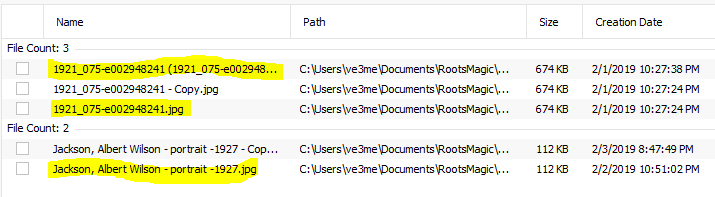 The highlighted names are of those in the database’s Media Gallery. The others are copies made using Windows File Explorer and are unused by (and therefore unrecorded in) the RM database. The script correctly reported the two matched files used by the database from their identical thumbnails.
CCleaner exports its results as a tab-delimited text file which can be imported into a spreadsheet:

Combining the data from the RootsMagic database with that from the CCleaner Duplicate Files report should provide what is needed to identify and replace duplicates in the Media Gallery and to delete the then unused duplicate files from computer storage. Combining may be done by importing the CCleaner data into the RM file, temporarily, or by exporting RM data to the spreadsheet. What follows is the first approach.
Migrate CCleaner Duplicate Search results to SQLite
With the CCleaner data in the spreadsheet, formulas can be applied to create a SQLite INSERT statement for each reported file. We will create an empty temporary table with a corresponding structure into which the generated statements will insert values from the spreadsheet. I’ve created a publicly accessible Google Sheet which anyone can copy to their own spreadsheet to work on or to use directly.
Scripts for finding Duplicates
Before running any of these scripts, you should use RM’s File > Database Tools:
- Test Database Integrity
- If #1 fails, Rebuild Indexes and repeat #1
- Delete Phantoms
And it is probably advisable to run the latest script from Delete Phantoms to clear out any detritus that may just confuse or exaggerate comparisons of Database Properties before and after the Merge Duplicates script below. Use your OS File Explorer/Manager to get the properties of the media folder(s) used by the database.
Thumbnails
Media-DupThumbnailsList.sql Make sure you open the RM Media Gallery and let thumbnail creation complete before running this script against your database. It creates a temp table named zDupMediaTable which is displayed at the end of script execution to show you the duplicates found. The script makes no modifications to the database; this table will be used by the merge script. Note that it ignores media files that are not image files or any file type that is not in the subject database’s Media Gallery. And beware that there is a risk of false positives because thumbnail images are of such low resolution. If you intend to proceed to merge duplicates, do not close the database from the SQLite manager as that will delete the temp table needed.
Files
Media-DupFilesList.sql You have to edit this script to include the INSERT commands you will copy from the spreadsheet before running it on the database. It creates an identically named temp zDupMediaTable to be used by the merge script and makes no changes to the database. Because Ccleaner does a bit-wise or byte-wise comparison, there is no chance of a false match between different images. However, it will not match files having exactly the same image data but a difference in just one character of metadata. If you intend to proceed to merge duplicates, do not close the database from the SQLite manager as that will delete the temp table needed.
Merging Duplicates
Media-MergeDuplicates.sql This is where the rubber hits the road and database changes are afoot. You have taken safety precautions? And your SQLite manager still has the temp zDupMediaTable in the database from either of the above scripts? This script won’t do anything without it. Fire away!
When you next run TreeShare after script execution, all the people whose media has been affected by the merge and is tagged to anything related to the person will be marked as Changed and all previous Changed people will first have been cleared. Nothing material should have been changed by the script but flagging them so helps you to confirm that is the case.
Cleanup
Repeat the initial steps of RM Database Tools and Delete Phantoms to clean out new detritus and then RM Database Properties for comparison of Before and After.
Delete surplus duplicate media files
The last step in the script lists the commands for deleting duplicate files from the media folder(s) that are no longer used by the database. Copy and paste them into a text editor for review and to avoid their loss if you have to close the database in the SQLite manager (some RootsMagic operations such as Backup and Restore cannot proceed if the database is open in another application). If you are confident that any or all are unused by any other database, copy and paste the respective ERASE commands into the CMD shell. They will execute immediately without asking for confirmation; the script could be modified to require a confirmation of each ERASE. For a large set, break up the command set into chunks.
Repeat getting folder properties for the After results to compare with Before, i.e., number of media files and total size.
Miscellaneous
- How well this procedure will scale with the size of the database is unknown. Certainly, once some large numbers of INSERTs and ERASEs is reached, there will be issues with copying and pasting and perhaps the size of the script for the INSERTs. Nor can we predict the speed with which the scripts will execute.
- How TreeShare functions remains a mystery in part. Events for a couple, such as Marriage, are especially problematic because we are advised that Ancestry handles them as separate individual events. It seems advisable, if not necessary, to have on the Ancestry Tree identical sources for the Marriage event for each person to be assured that RM will create the couple’s Marriage event with all the sources. And updating via TreeShare sometimes is a tail-chasing exercise in which ostensibly identical citations or media on both sides are perceived as new for the other with the update one way provoking the offer of a new one the other.
- The flagging of Changed People is done by setting the Modified field to 1 for records in LinkAncestryTable whose LinkType is 0. The script also sets the Modified field to 1 for records of LinkType 4 (citations) and 11 (media) but these have no effect on anything apparent in RM 7590.
- This procedure does not provide ERASE commands for media files that are unique (not duplicates) and unused by the database. The procedure on this early page could be adapted to do so: Scrapbook Files Status
Updates responding to TreeShare
Working out the wrinkles in a new script addressing some TreeShare issues, I was using some other scripts to help me understand what was going on and ran into a couple of issues that I’ve fixed:
- RM7_5_WaymarksViews.sql was not reporting family events (e.g., Marriage) and that affected other views which relied on the EventWay view.
- DeletePhantoms3.sql did not delete TreeShare links that were orphaned
Events – Add to all Children a Parent event shared with parents #facttypes #sharedevent #relationships #rm8
TBA: Rev 2021-03-0x above script adapted for RM8 by Tom Holden from the #RM7 script described below by the original author, Jerry Bryan. Note that the custom fact type ‘Parents’ and the role ‘Birth_of_Child’ must be created separately in advance of executing this script.
This is a query I wrote just for myself and I didn’t feel as if it were of sufficiently general interest to post here. Also, it is not as polished as I like queries to be that I share publicly. But a request came up on the RootsMagic forums, so here it is. The query adds a Parent fact to everyone in the database who is not a dummy person, who has parents, and who has a birth fact with a valid date. The dummy person definition is for my own database, where my dummy people have an asterisk somewhere in their name. The birth fact with a valid date is required because the Parent fact needs a valid date, and in my database at least it needs to be placed immediately after the Birth fact. The name of the fact is singular “Parent” but it supports both parents. As written, the parent information is placed two places: 1) in the Description field for the Parent fact, and 2) the Parent fact is shared with both parents.
My sentence template for the Parent fact itself is setup as follows:
<b>Parents:</b>< [Birth_of_Child].>
I use point form sentences with the sentence for each fact starting on a new line. The new line is a part of the template. Most RM users would need to set up the sentence template differently to meet their own needs. The [Birth_of_Child] variable looks funny, but that’s the role I share with the parents and it is what gets the parents listed in the sentence. Using the [Desc] variable would produce the same sentence, but using the [Birth_of_Child] variable causes the parents to be listed in the index for this page and the [Desc] variable does not. I mostly use Descendant Narrative reports. For the descendants, the parents appear in the report anyway, a generation earlier. The [Parent] variable makes the parents explicit. For the spouses of the descendant, their parents already appear by default in what I call the spouse sentence. So the [Parent] variable for the spouses represents a duplication. The spouse sentence is not under control of source templates (a major failing of RM), so I solve the problem by running a Notepad++ script on the RTF file to remove the parents from the spouse sentence before printing.
My sentence template for the [Birth_of_Child] role is as follows.
<b>Birth of Child:</b> <[Date:plain]><, [Person:Full]><, parent age: [ThisPerson:age:plain]>.
This has the salutatory effect of including the birth of each child on the timeline of each parent in a narrative report. Upon further review, I think the sentence would look better using a gender switch to say mother’s age or father’s age as appropriate. Gender switches work on the [Person] variable. I can’t remember if they work on the [ThisPerson] variable or not.
And here follows the script, warts and all
-- This script writ large creates a Parent
-- fact for every person in the RM database
-- who has parents. It loads the parents'
-- names into the Description field for the
-- Parent fact. It also shares the Parent
-- fact with the parents themselves where it
-- shows up as a Birth of Child event.

-- This script was not developed with the intent
-- of being generally distributed. Hence, it has
-- not been refined and tested the way I would do
-- for general distribution of a script. Please
-- use it and adapt it on an "as is" basis or for
-- ideas alone.

-- I can't remember for sure, but sometimes scripts
-- that insert this much data into into an RM data
-- base can create indexing errors. If so, run the
-- RM database tool in order immediately after running
-- this script.

-- Jerry Bryan 7/31/2018


-- Create a view of the EventTable
-- containing only Parents events.
-- This view will be used to prevent
-- creating a Parents event for
-- any individuals who already have
-- a Parents event. The main data needed
-- is the PersonID of the individuals
-- who already have a Parents event.
-- The PersonID manifests itself in
-- the EventTable as OwnerId.


DROP VIEW IF EXISTS ParentEventView;
CREATE TEMP VIEW ParentEventView AS
SELECT E.*
FROM EventTable AS E
       JOIN
     FactTypeTable AS FT  ON FT.FactTypeID = E.EventType
     WHERE FT.Name LIKE('Parents');


-- Create a view of the EventTable
-- containing only Birth events.
-- These events provides an initial list
-- of candidates of people to receive
-- a Parents event. Also, many of the
-- fields for newly created Parents
-- events will be replicated from the
-- corresponding Birth event.

DROP VIEW IF EXISTS BirthEventView;
CREATE TEMP VIEW BirthEventView AS
SELECT Birth.*
FROM EventTable AS Birth
       JOIN
     FactTypeTable AS FT  ON FT.FactTypeID = Birth.EventType
     WHERE FT.Name LIKE('Birth');


-- Create a view of Birth events for people
-- that don't have a Parent event. This is the
-- first filtering on the list of candidates
-- of people to receive a Parents event.


DROP VIEW IF EXISTS BirthWithoutParentsEventView;
CREATE TEMP VIEW BirthWithoutParentsEventView AS
SELECT Birth.*
FROM BirthEventView AS Birth
          LEFT JOIN
     ParentEventView AS Parent ON Parent.Ownerid = Birth.OwneriD
WHERE Parent.OwnerID IS NULL;

-- Create a view of the NameTable
-- containing only primary names.
-- This view will be a source of
-- the names needed for the newly
-- created Parents events and will
-- prevent any names other than the
-- primary ames from being loaded
-- into -- Parents events. This
-- view also prevents Parents events
-- from being created for any dummy
-- people, designated with an asterisk
-- in the name.

DROP VIEW IF EXISTS NameView;
CREATE TEMP VIEW NameView AS
SELECT N.*
FROM NameTable AS N
WHERE N.IsPrimary = 1
  AND N.Surname NOT LIKE('%*%')
  AND N.Given   NOT LIKE('%*%');

-- This view performs most of the
-- main processing for this project.
-- It determines which people actually
-- do have parents. Actually having
-- parents is based on being in the
-- ChildTable and has nothing to do
-- with whether a Parents event exists
-- or not. This list of people with parents
-- is then matched against people who are not
-- dummy people, who do have birth
-- events, and who don't already have
-- Parents events. This view also
-- develops the data that will need to
-- be stored in the newly created
-- Parents events.


DROP VIEW IF EXISTS ChildParentsView;
CREATE TEMP VIEW ChildParentsView AS
SELECT Child.ChildID,  Child.Given  || ' ' || Child.Surname  AS ChildName,
       Father.FatherID, Father.Given || ' ' || Father.Surname AS FatherName,
       Mother.MotherID, Mother.Given || ' ' || Mother.Surname AS MotherName,
       CASE
       WHEN Father.FatherID = 0 THEN Mother.Given || ' ' || Mother.Surname
       WHEN Mother.MotherID = 0 THEN Father.Given || ' ' || Father.Surname
       ELSE Father.Given || ' ' || Father.Surname || ' and ' || Mother.Given || ' ' || Mother.Surname
       END CombinedNames,
       B.Date,
       B.SortDate,
       B.EditDate

FROM  (  SELECT C.RecID,
                C.ChildID,
                N.Given,
                N.Surname
         FROM   ChildTable AS C
                  JOIN
                NameView AS N ON N.Ownerid = C.ChildID
      ) AS Child

           JOIN

      (  SELECT C.RecID,
                FM.FatherID,
                N.Given,
                N.Surname
         FROM ChildTable AS C
                JOIN
              FamilyTable AS FM ON C.FamilyID =  FM.FamilyID
                LEFT JOIN
              NameView AS N ON N.OwnerID = FM.FatherID
      ) AS Father ON Father.RecID = Child.RecID

           JOIN

      (  SELECT C.RecID,
                FM.MotherID,
                N.Given,
                N.Surname
         FROM   ChildTable AS C
                  JOIN
                FamilyTable AS FM ON C.FamilyID =  FM.FamilyID
                  LEFT JOIN
             NameView AS N ON N.OwnerID = FM.MotherID
       ) AS Mother ON Mother.RecID = Father.RecID

            JOIN

       BirthWithoutParentsEventView AS B ON B.OwnerID = Child.ChildID;

-- The data from the ChildParentsView needs to be used
-- twice, once to load Parents events into the EventTable
-- and again to load roles into the WitnessTable. The
-- Parents events have to be loaded into the EventsTable
-- first, and one Insert statment in SQLite cannot load
-- data into two tables. However, loading Parents Events
-- into the EventTable will cause the ChildParentsView
-- not to produce the correct results the second time it
-- is used. Therefore, the results from applying the
-- ChildParentsView will be saved into a temporary table
-- called ChildParentsTable. As a table instead of a view,
-- the data in ChildParentsTable can be used two different
-- times and remain the same data both times it is used.

DROP TABLE IF EXISTS ChildParentsTable;
CREATE TEMP TABLE ChildParentsTable
(ChildID,ChildName,FatherID,FatherName,MotherID,Mothername,CombinedNames,Date,SortDate,EditDate);
INSERT INTO ChildParentsTable
(ChildID,ChildName,FatherID,FatherName,MotherID,Mothername,CombinedNames,Date,SortDate,EditDate)
SELECT CP.*
FROM ChildParentsView AS CP;


-- Load new Parents facts into the EventTable.

INSERT OR ROLLBACK INTO EventTable
SELECT NULL AS EventID
    ,(SELECT FT.FactTypeID FROM FactTypeTable AS FT WHERE FT.Name LIKE('Parents') ) AS EventType
    ,0 AS OwnerType
    ,ChildID AS OwnerID
    ,0 AS FamilyID
    ,0 AS PlaceID
    ,0 AS SiteID
    ,Date AS Date
    ,SortDate AS SortDate
    ,0 AS IsPrimary
    ,0 AS IsPrivate
    ,0 AS Proof
    ,0 AS STATUS
    ,EditDate AS EditDate
    ,CAST('' AS TEXT) AS Sentence
    ,CAST(CombinedNames AS TEXT) AS Details
    ,CAST('' AS TEXT) AS Note
 FROM ChildParentsTable;


 --   ===========================================================================================================
 --     The following is adapted from Tom Holden to rank same date sort dates.
 --
 --     There are a number of changes by Jerry Bryan that are specific to his
 --     use case.
 --
 --        * The list of fact types which are supported is greatly increased.
 --        * Sort dates including ranked sort dates (date-n) are ranked and even re-ranked
 --          whether or not they match the date from from the fact itself, provided only
 --          that the sort dates in question match each other.
 --             . This allows same "ABT" dates to be ranked.
 --             . This allows same "year only" dates to be ranked if the sort date is
 --               1 July of the year.
 --             . This allows same "year and month only" dates to be ranked if the
 --             . sort date is the 15th of the month.
 --
 --   ===========================================================================================================

/* SortDateSameDayOrderCustom.sql
   2011-12-20 ve3meo
   Alters SortDates of any set of Fact types
   to a natural order when any pair or more occur on the same date.
   Could be extended to order other facts also. SortDates are effectively assigned
   (by arithmetical offsets) an absolute suffix -1, -2, ... related to the rank of the FactType.
   Affects only those events whose SortDates correspond to the Fact Date, as computed
   by a Date encoding algorithm. The algorithm does not handle Date modifiers so not all
   Event dates are handled, e.g. "Bef 1960".
*/
DROP TABLE IF EXISTS TmpFactOrder
;
CREATE TEMP TABLE IF NOT EXISTS TmpFactOrder
(Rank INTEGER PRIMARY KEY, FactName TEXT)
;

/* list of Fact Names, standard and custom, to be sorted, in rank order.
   Revise the list to suit your needs */
INSERT INTO TmpFactOrder (Rank, FactName) VALUES (NULL, 'Birth');
INSERT INTO TmpFactOrder (Rank, FactName) VALUES (NULL, 'Parents');             -- added by JB
INSERT INTO TmpFactOrder (Rank, FactName) VALUES (NULL, 'Birth Certificate');   -- added by JB
INSERT INTO TmpFactOrder (Rank, FactName) VALUES (NULL, 'Christen');
INSERT INTO TmpFactOrder (Rank, FactName) VALUES (NULL, 'Baptism');
INSERT INTO TmpFactOrder (Rank, FactName) VALUES (NULL, 'Death');
INSERT INTO TmpFactOrder (Rank, FactName) VALUES (NULL, 'Obituary');            -- moved up by JB
INSERT INTO TmpFactOrder (Rank, FactName) VALUES (NULL, 'Death Certificate');   -- added by JB
INSERT INTO TmpFactOrder (Rank, FactName) VALUES (NULL, 'Funeral');
INSERT INTO TmpFactOrder (Rank, FactName) VALUES (NULL, 'Cremation');
INSERT INTO TmpFactOrder (Rank, FactName) VALUES (NULL, 'Burial');
INSERT INTO TmpFactOrder (Rank, FactName) VALUES (NULL, 'Burial Inscription');  -- Added by JB
INSERT INTO TmpFactOrder (Rank, FactName) VALUES (NULL, 'Burial GPS');          -- Added by JB
INSERT INTO TmpFactOrder (Rank, FactName) VALUES (NULL, 'Memorial');
/* revise SortDates */
UPDATE EventTable
SET SortDate = SortDate
  -6692012023  -- this offset goes to Date-1 if the event is a ranked event
  *( (
      SELECT Rank
      FROM TmpFactOrder,
           FactTypeTable
      WHERE FactName LIKE Name
      AND FactTypeID = EventType
      )>0
    )
  +1048576  -- this offset adds steps of 1 to Date-1 multiplied by (rank-1)
  *( (
      SELECT Rank
      FROM TmpFactOrder,
           FactTypeTable
      WHERE FactName LIKE Name
      AND FactTypeID = EventType
      )-1
    ) -- maps the FactType to its order
WHERE EventID
IN (SELECT EventID FROM EventTable
    INNER JOIN
    (SELECT -- matching dates
     SortDate, OwnerID, COUNT()-1 AS Matches
     FROM EventTable
     INNER JOIN FactTypeTable
     ON EventType = FactTypeID
     WHERE EventTable.OwnerType = 0
     AND Name IN (SELECT FactName FROM TmpFactOrder)
/*     AND    -- commented out by JB to handle sort dates not matching fact date when sort dates are equal to each other.
     SortDate =   -- equals encoded event Date (if not a match, suggests that user has modified SortDate so don't touch it)
       (CASE
        WHEN DATE LIKE '.%'
        THEN 1
        ELSE Substr(DATE,3,5) END
        +10000
        )*562949953421312
        + Substr(DATE,8,2)*35184372088832
        + Substr(DATE,10,2)*549755813888
        + 17178820620 */
      GROUP BY SortDate, OwnerID, EventTable.OwnerType
     )
     USING (OwnerID, SortDate)
     INNER JOIN FactTypeTable
     ON EventType = FactTypeID
     WHERE Matches
     AND EventTable.OwnerType = 0
     AND Name IN (SELECT FactName FROM TmpFactOrder)
    )
;


-- We now add Parent roles to each Parents event.
-- It is most convenient to add the Parent role
-- for the father in one INSERT and to add the
-- Parent role for the mother as a separate insert.
-- So we first create a view that joins the
-- Parent events with the ChildTable and FamilyTable
-- to get a list of Parent events and their
-- respective fathers and mothers.

DROP VIEW IF EXISTS ParentRoleView;
CREATE TEMP VIEW ParentRoleView AS
SELECT PEV.*,
       FM.FatherID, FM.MotherID
FROM ParentEventView AS PEV
        JOIN
     ChildTable AS CT ON CT.ChildID = PEV.OwnerID
        JOIN
     FamilyTable AS FM ON CT.FamilyID =  FM.FamilyID;


-- Load Parents roles for fathers into the WitnessTable

INSERT OR ROLLBACK INTO WitnessTable
SELECT NULL AS WitnessID
    ,PE.EventID AS EventID
    ,Parents.FatherID AS PersonID
    ,0       AS WitnessOrder
    ,(SELECT R.RoleID FROM RoleTable AS R WHERE R.RoleName LIKE ('Parent') ) AS Role
    ,CAST('' AS TEXT) AS Sentence
    ,CAST('' AS TEXT) AS Note
    ,CAST('' AS TEXT) AS Given
    ,CAST('' AS TEXT) AS Surname
    ,CAST('' AS TEXT) AS Prefix
    ,CAST('' AS TEXT) AS Suffix
 FROM ChildParentsTable AS Parents
         JOIN
      ParentEventView AS PE ON PE.OwnerID =  Parents.ChildID AND PE.Details = Parents.CombinedNames;

-- Load Parents roles for mothers into the WitnessTable

INSERT OR ROLLBACK INTO WitnessTable
SELECT NULL AS WitnessID
    ,PE.EventID AS EventID
    ,Parents.MotherID AS PersonID
    ,0       AS WitnessOrder
    ,(SELECT R.RoleID FROM RoleTable AS R WHERE R.RoleName LIKE ('Parent') ) AS Role
    ,CAST('' AS TEXT) AS Sentence
    ,CAST('' AS TEXT) AS Note
    ,CAST('' AS TEXT) AS Given
    ,CAST('' AS TEXT) AS Surname
    ,CAST('' AS TEXT) AS Prefix
    ,CAST('' AS TEXT) AS Suffix
 FROM ChildParentsTable AS Parents
         JOIN
      ParentEventView AS PE ON PE.OwnerID =  Parents.ChildID AND PE.Details = Parents.CombinedNames;
;
DAT File Question #ancestrycom #treeshare #database
I found some discrepancies in RootsMagic and posted a question. This was in an answer:
C:\Users\Tom\AppData\Roaming\RootsMagic\AMT (change the “Tom ” to your Windows username). In this folder is a .DAT file for each connected Ancestry Member Tree (AMT), named “AT-AncestryTreeID.DAT”, where AncestryTreeID is an integer. This file is a SQLite database containing tables named identically to a subset of the TreeShared RM database file.
Is there any data description documentation on that file? Or any documentation on its purpose in life and what it does.
Discussions & comments from Wikispaces site
GEDCOM & DnD transfer losses #gedcom
Background
RM10 reportedly uses direct data transfer between databases for drag’n’drop, not GEDCOM, so it will have different issues, if any. 2024-06-20
RootsMagic Drag’n’Drop between the windows of two databases is a background GEDCOM export-import process. Both Drag’n’Drop and the explicit File>Export and Import process fail to fully transfer everything from one database to another. Drag’n’Drop and GEDCOM are governed by the settings for Export in Lists>Fact Type List so any fact type that is not enabled for “Exporting GEDCOM files” will be lost in transfer. A number of other less obvious losses have been identified Continue reading →
RMNOCASE – faking it in SQLite Expert, command-line shell et al #rmnocase
SQLite Expert now takes the lead as the most compatible with the RootsMagic RMNOCASE collation, thanks to the C extension unifuzz.dll authored or revised by Jean-Christophe Deschamps. Unifuzz can be used with other SQLite managers that support extensions, including the command-line shell sqlite3.exe but not, regrettably, SQLiteSpy.
This is not simply a renamed equivalent of the SQLite NOCASE collation (see RMNOCASE – faking it in SQLiteSpy); rather, it is a very comprehensive compilation of the unicode character set. Against a RootsMagic database comprising 8091 different Unicode characters in Surnames, PRAGMA Integrity_Check returns 187 missing rowids from indexes idxSurname and idxSurnameGiven with SQLite Expert using this substitute collation. SQLiteSpy returns 16042 missing rowids from the same two indexes including 9 from idxSourceTemplateName with its fake collation. RootsMagic itself reports two missing rowids from each of the two Person Name indexes so there is something wrong even with the genuine RMNOCASE collation.
Download unifuzz.dll, unifuzz64.dll
unifuzz.dll or unifuzz.dll.bak (for 32-bit apps. Remove .bak extension after d/l, added due some systems’ security)
unifuzz64.dll for 64-bit apps, added 2020-03-05, tested with SQLite Expert Personal 64bit 5.3.5
Download and save to the same folder where you have the executable file for SQLite Expert or the command-line shell (or other SQLite manager that supports C extensions).
Using unifuzz.dll with SQLite Expert
Version 3.5
- Under the menu item Tools > Options > Show/Hide Features, check the box labelled “Load/Unload Extensions” to reveal these selections in the File menu. The options is saved between sessions.
- To load the extension, simply select File > Load Extension and use the resulting “Select extension file” window to browse to, select and open unifuzz.dll. OK the default value “sqlite_extension_init” in the Entry Point window. That’s it! You now have a very (if not perfectly) compatible RMNOCASE collation associated with the database.
Version 4 and 5
The Show/Hide Features option is missing from this version as is File > Load Extension. The only choice is to right-click on the database name in the sidebar to invoke the drop-down menu which includes Load Extension and proceed as in step 2 for ver 3.5. Because unifuzz.dll is a 32-bit extension, it will work with only the 32-bit version of SQLite Expert. Use unifuzz64.dll with the 64-bit version. The Unload Extension function is inoperable and there is no way to tell if an extension has been loaded.
There is a functional difference between the free SQLite Expert Personal edition and the $59 Professional edition. Personal requires that you load the extension for each database, each time you open the database while Pro can be set to automatically load an extension. The free SQLiteSpy can be set to auto load an extension but can only have one main database open at a time while Expert can have multiple databases open.
Using unifuzz.dll with SQLite3.exe
This C extension can be used with the command line shell, which opens up some potentially powerful possibilities with Windows command scripts (batch files). To load the extension, from the SQLite prompt enter the dot command:
sqlite> .load "unifuzz.dll"
If SQLite3.exe and unifuzz.dll are not in the same directory, then the full path to unifuzz.dll must be provided between the quotes.
The shell can be launched to execute a sql script to both load this “RMNOCASE” extension and run sql commands – here’s a simple example. At the Windows command prompt, open on the folder where the database file, sqlite3 and unifuzz are all located, enter the following or open a batch command file with the same content:
sqlite3 "RootsMagic database filename with .rmgc extension" < "sql script filename"
Example SQL script file to be called from the command line:
.LOAD "unifuzz.dll"

/*
 demonstrate that RMNOCASE is available by returning list of surnames
 - if not available, an error is returned
*/

SELECT Surname FROM NameTable ORDER BY Surname;
Unifuzz.c Source and compiling
unifuzz.c is readily compiled using the gcc compiler, mine came bundled in Dev-C++ Integrated Development Environment. I couldn’t figure out how to tell the IDE what I wanted to do but Jean-Christophe provided the command line for the gcc compiler at line 541 of his source code so I followed that. As the source is written, you want to extract to a folder the sqlite3.h and sqlite3ext.h files from the zip or tar file named sqlite-amalgamation-versionnumber on the SQLite Download Page under the heading Source Code. In a sub-folder below those .h files, place the unifuzz.c file. Then in the command line interface, issue:
pathtogcc\gcc -O2 -lm -shared unifuzz.c -o unifuzz64.dll
The DLL file will be produced in the same folder as the unifuzz.c file.
Discussions & comments from Wikispaces site
unifuzz run time loadable extension for OS’s other than Windows
05 September 2017 00:54:38
Hooray! This has been on my ToDo list for a long time and I finally worked on this this weekend. As mentioned above, being able to run queries from the command line opens up a host of powerful possibilities. Unfortunately, the provided DLL above only works on Windows. I run RootsMagic on macOS, but macOS being Unix-like based, the sqlite3 command line tool can be compiled and used. If you try to run a query without accommodating for RMNOCASE, you get the dreaded “Error: no such collation sequence: RMNOCASE” message. Long story short, this is now working on my MacBook Pro. The details can be found here: https://github.com/mooredan/unifuzz . This should work for a Linux system as well. If someone wants a binary, let me know if you don’t want to (or can’t) roll your own.
I hope to integrate this with PHP and GD for creation of some custom web-based charts….
Facts – Change Fact Type #facttypes #events #rm8
Problem
RootsMagic provides no means to change all events of one fact type to another fact type, e.g., convert Residence events to Census events or vice versa. Or convert events for a custom fact type to a standard one. All it offers as of version 7.6.3 is to do so for one person, one event at a time which is laborious and slow.
Solution
A script that converts all events of one fact type to another in a fraction of a second.
Usage

Enter the name of the current event as you see it in the Edit Person screen or as you see it in the Abbrev field of Lists > Fact Type List. Then the value of the Abbrev field for the fact type to which you want the events transformed. When entered, the UPDATE process proceeds.

Requires SQLite Expert Personal with fake RMNOCASE extension loaded or an equivalent SQLite manager that also supports the entry of runtime variables.
Because this modifies your database, BACKUP FIRST! After executing, you should use RootsMagic Database Tools to check integrity and, if not OK, rebuild indexes.
Scripts
Two scripts are offered: one is for only for a fact type having no shared events and is simpler and faster. The other supports conversion of a fact type that does have shared events; use it if you are uncertain but you can check for shared events with the help of People Who Share a Fact with a Principal List and with People Who Share A Fact with a Principal, But Who Are Not in a Tree in The File List.
2021-12-30: Facts_shared-ChangeType-RM8.sql for #RM8.
Facts_shared-ChangeType.sql for prior versions.
These much more complex scripts than Facts-ChangeType.sql below do support shared events in addition to unshared ones.
Facts-ChangeType.sql This simpler script than the ones above can change the Fact Type of unshared events but not shared events. 2023-03-14: protects shared events from being changed and tested compatible with #RM9. Should be compatible right to RM4.
For the conversion of shared events, the more complex scripts look for role(s) in the target fact type that match the name and sentence template of those used by events of the originating fact type. For those that do not match, a duplicate of the current role is created for the target fact type. Sharers of the transformed event are assigned these existing or new roles. The original role definitions remain intact. Should events be converted back to their original fact type, no new roles will be created provided no change has been made in either the original or target role name or sentence.
Discussions & comments from Wikispaces site
Newbie successfully used this!
25 July 2017 18:33:32
Have never touched SQLite before today (although I do have a somewhat minimal exposure to programming) but was able to piece together the proper program, with the proper fake RMNOCASE extension, and the above script (after a couple of false starts) and within two hours from start to finish had successfully modified my RootsMagic database that was imported from FTM 2014.
I didn’t like the way the import put the FTM Description fields on major facts (Birth, Baptism, Marriage, Naturalization, Death, Burial, Probate) into Place details so, before the import, I used the built-in FTM option to move all those facts to corresponding temporary facts (TBirth, TBaptism, TMarriage, TNaturalization, TDeath, TBurial, TProbate). Imported the file to RootsMagic and used the above script to move all the data back to the original fact. Worked like a charm. I ran the Database tools after and everything worked splendidly. On 18,165 people tree. Would have taken years to do this manually person by person which is the only option within RootsMagic.
Have spot checked people and everything, including the more complex shared marriage fact is functioning exactly as they should.
Thank you Tom! Wish I had tried it back in Jan of 2016 instead of continuing with FTM but I guess things happen at the time they are meant to happen.
momakid
20 September 2017 22:14:45
I installed SQLite Expert Personal (5.2 (x64).
I opened my RootsMagic database.
I entered the following in the SQL window:
select surname
from nametable;
I got no such collation sequence: RMNOCASE
I did a right click on my database
I selected Load Extension
I selected the the File Name (C:\Program Files\SQLite ExpertPersonal 5\unifuzz.dll)
I entered sqlite_extension_init for the Entry Point
I left auto unchecked
I clicked OK
I got a popup of The specified module could not be found